Stata GUI on Windows (Xming + PuTTY)
The standard lab onboarding walkthrough for running the Stata GUI on Scribe from a Windows machine.
This uses X11 forwarding — a mechanism that runs Stata on Scribe but forwards its windows to your local Windows machine — via PuTTY (an SSH client) and Xming (an X server).
Before you start
- The screenshots below show the host as
Scribe.ucdavis.edu; the current host isScribe.ssds.ucdavis.edu— use that. - Connect to the DSS VPN first (see Working on Scribe).
1. Install PuTTY and Xming
- PuTTY — from the PuTTY download page,
get the
.msiinstaller that matches your machine (32- or 64-bit) and run it. Defaults are fine. - Xming — install from SourceForge.
- Launch Xming. It minimizes to an icon in the system tray; just leave it running.
2. Configure PuTTY
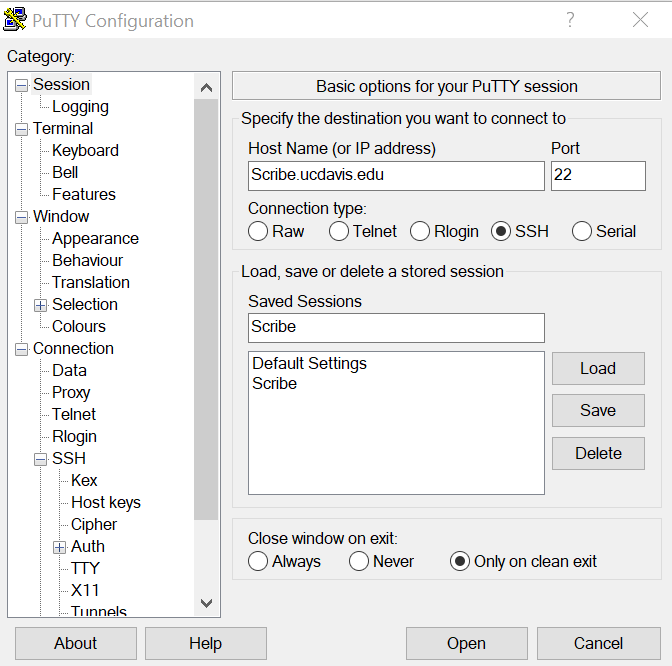
Open PuTTY. You'll see the configuration window:
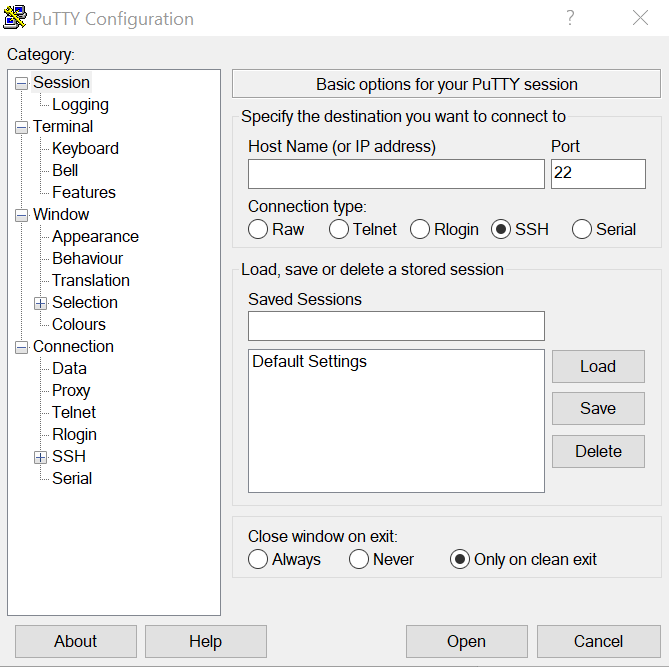
In Host Name (or IP address), type Scribe.ssds.ucdavis.edu (the screenshot shows the older
Scribe.ucdavis.edu form):
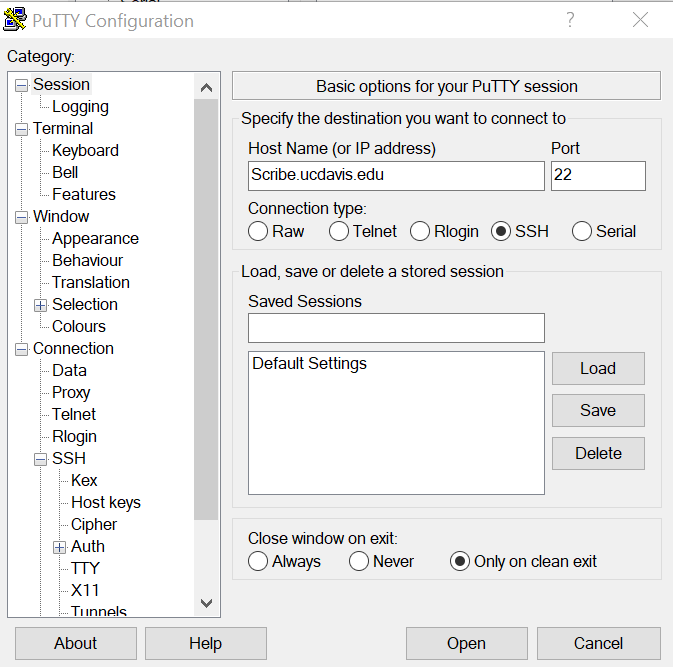
In the Category panel on the left, scroll to SSH, expand it, and click X11:
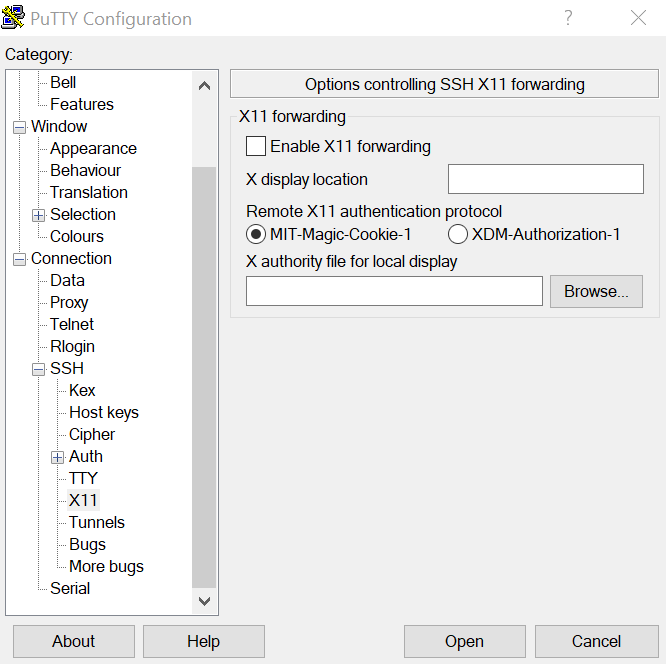
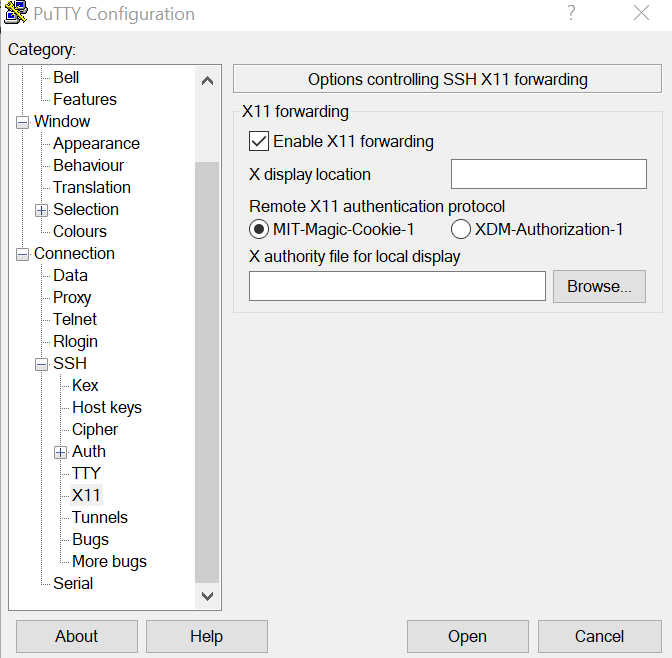
Check Enable X11 forwarding, and under Remote X11 authentication protocol select MIT-Magic-Cookie-1:
3. Save the session (optional)
Go back up to Session in the Category panel, type a name (e.g. Scribe) under Saved
Sessions, and click Save. Next time, just load the saved session and everything is
pre-filled.
4. Connect and launch Stata
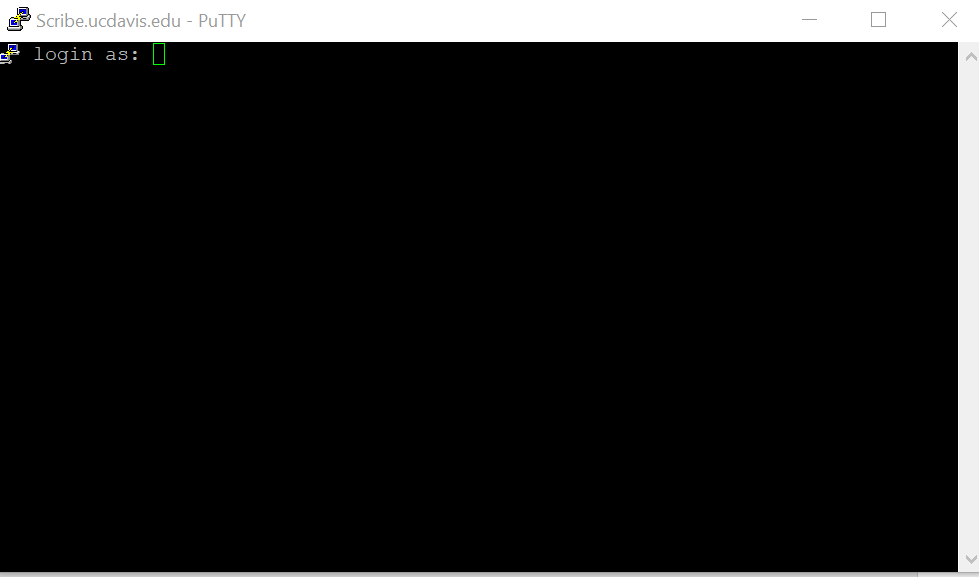
With Xming running and the DSS VPN connected, click Open. At the prompt, type your Scribe username and press Enter, then your password (keystrokes won't show):
Once you're at the command line, set your lab group permissions and launch the GUI:
go_sbac                # set lab group permissions (run each login)
xstata-mp              # or xstata-se, depending on the Stata edition you want
The Stata GUI opens on your desktop — that's it.
Use the GUI for exploration, not for writing code
The GUI is handy for poking at the data, but anything you want to keep belongs in a saved
.do file run in batch. See Working on Scribe for the batch workflow
and Editing Stata in VSCode for writing your code.